
If voice typing repeatedly misspells a name, add its preferred spelling to the vocabulary of the dictation app you use, then check it in a complete sentence. A word processor’s spellcheck dictionary serves a different purpose. In Sayvento, use Dictionary for recurring names and terms, Snippets for repeated text, and typing or paste for exact one-off identifiers.
You dictate a clear project update, but a colleague’s name comes out differently each time. Or an English product name becomes an ordinary word inside a Greek sentence. Correcting the paragraph is straightforward; correcting the same term every day becomes an interruption.
A useful personal vocabulary starts with the words you actually repeat. This guide explains how to choose those entries, check their effect and handle details that still need exact characters.
First, identify which dictionary you are changing
A speech vocabulary supplies words to a dictation tool. A spellcheck dictionary tells a writing app which written words to accept. They act at different stages of the workflow.
Microsoft’s Word documentation describes adding words to a custom dictionary so the spelling checker accepts them. That setting concerns written text; it does not document a way to teach a separate speech tool what to transcribe. Microsoft: spellcheck dictionaries.
Windows also has several distinct speech experiences. Windows voice typing is the tool opened with Windows + H. Voice access has its own commands and vocabulary controls. Microsoft’s current voice access documentation includes Add to vocabulary, plus spelling commands for names and other unusual words. Those instructions belong to voice access; do not assume the same commands work in Windows + H or Sayvento. Microsoft: voice typing, Microsoft: voice access dictation.
The practical rule is simple: find the vocabulary controls in the app recording your speech, even if the finished text lands in Word or Outlook.
Choose vocabulary, a snippet or exact text
Not every recurring correction needs the same fix. Use the smallest tool that fits the detail.
| What you need to write | Useful starting point | What to check |
|---|---|---|
| A colleague’s name used in different sentences | Dictionary entry with the preferred spelling | Name, capitalization and any accents |
| A recurring product or specialist term | Dictionary entry | Exact written form in surrounding text |
| A standard sign-off or reusable reply | Snippet with a distinct spoken trigger | Full expansion before sending |
| A one-off invoice ID, URL or reference code | Type or paste the exact value | Every character against the original |
| A correct name that Word underlines | Word’s spellcheck dictionary | Whether the written name is already right |
A Dictionary entry is a spelling hint; a Snippet is saved text expanded from a trigger. Sayvento describes both in its product guide. Neither removes the need to review important output.
For example, keeping “Katerina” as a name entry lets you use that name in different sentences. A saved sign-off belongs in a Snippet because you want the same whole phrase each time. A changing invoice number usually belongs in neither.
Add a small, useful vocabulary in Sayvento
Start with a short list: people you mention regularly, active project names and specialist terms that repeatedly need correction. Keep a reliable source beside you, such as the person’s email signature or the project’s official spelling.
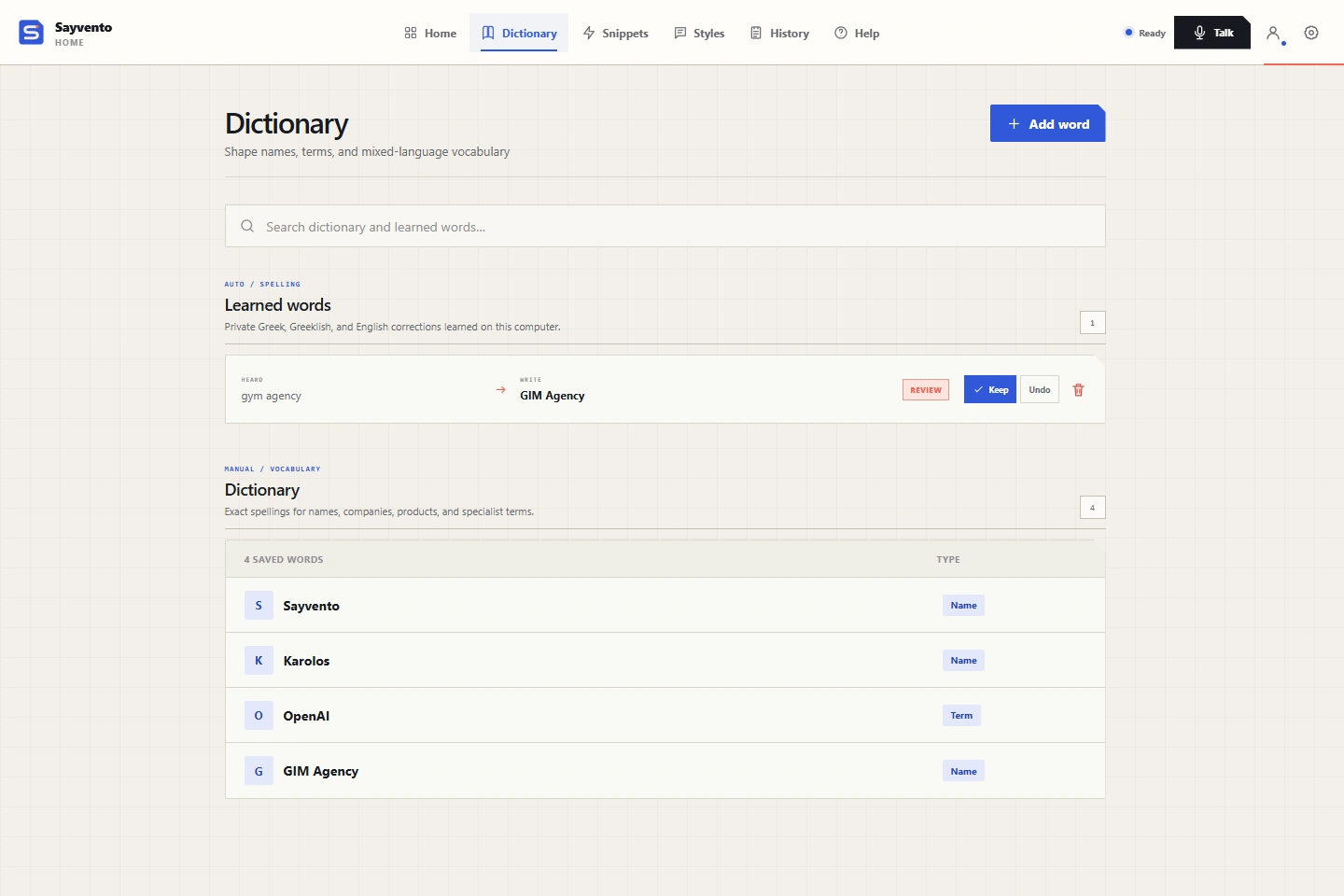
Actual Sayvento interface with demo data. Add word is at the top right; Learned words and saved Dictionary entries have separate sections. On a small screen, open the image for a closer look.
In Sayvento’s English interface:
- Open Dictionary and choose Add word.
- Enter the exact spelling in Word or phrase, including the intended capitalization and accents.
- Choose Name or Term as the category.
- Save with Add word.
- Dictate a short sentence containing the entry, then read the result.
Try a second sentence with different surrounding words. This is a practical check of your setup, not a measured accuracy test. An entry gives the tool useful context; it is not a guarantee that every recording will produce that spelling.
Avoid filling the list with every word you might someday say. Begin with entries that solve observed problems. If a term is no longer relevant or was saved incorrectly, edit or remove it rather than letting your personal vocabulary accumulate mistakes.
Keep Greek and English spellings deliberate
For mixed speech, Sayvento offers Greek + English dictation. Your preferred written vocabulary still matters: “Νεφέλη” and “Nefeli” are different written forms, even when they refer to the same person. Choose the form your recipient expects and review it in context.
Suppose your intended project note is:
Η Νεφέλη θα ελέγξει το PostgreSQL migration πριν από το review.
The useful vocabulary entries might be the Greek name and the English technical term. The rest of the sentence is ordinary dictation. This is an invented example of intended text, not a transcript produced by Sayvento or a claim about recognition accuracy.
If your concern is switching between languages across a whole message, the separate Greek and English email workflow covers that setup. Here, focus on whether the recurring words retain the written forms you need.
Review Learned words and the final result
Sayvento’s Dictionary also includes Learned words, where you can review suggested corrections and choose Keep or Undo. Check whether a suggestion reflects your intended spelling before keeping it. A correction that suits one context may be wrong for another person or project.
After dictation, read names and specialist terms first. Then check dates, amounts and references that could change the meaning. If the text looks wrong only after an optional cleanup step, compare the original and cleaned-up result in History before deciding what to change.
For an ambiguous name, typing a few characters can be the quickest finishing step. For an exact code, paste from the source. Your goal is a reliable finished message, so combine speech, keyboard and clipboard where each helps.
Frequently asked questions
Will adding a name to Word’s dictionary fix voice typing?
Word’s custom dictionary affects its spelling checker. To influence a dictation tool’s vocabulary, use that tool’s own controls where available. If the name is already written correctly and only underlined, spellcheck is the setting to address.
Does Sayvento guarantee the spelling of a saved name?
No. Dictionary entries provide preferred spellings as hints. Check the result, particularly when two names sound alike or a sentence mixes languages. A saved entry does not make important details safe to send unread.
Can I use a Snippet for a name or technical term?
Snippets expand saved text when their spoken trigger is recognized. They are useful for recurring phrases and exact reusable text. Dictionary is the clearer starting point when you want to say a name naturally in different sentences.
Is personal vocabulary an offline transcription feature?
No. Sayvento stores personal vocabulary locally, but its transcription and optional cleanup use cloud processing and need internet access. Local storage and offline recognition are separate capabilities. See the privacy guide.
Start with the next name you would otherwise correct
Download Sayvento for Windows and create a Free account. Add one recurring name, dictate a short project note and check the written form before using it in a real message.
As verified on 5 October 2026, Free includes 3,500 words per week, resetting Monday at 00:00 UTC. The site lists Pro at €10 per month or €100 per year; your account shows upgrade availability. Check the current plans and limits when choosing your plan.