

If your microphone meter moves but dictation produces no usable text, check three separate stages: audio capture, transcription and insertion into the destination app. A moving meter shows that one audio input is receiving a signal. It does not prove that your dictation app is using that input, can transcribe it, or has somewhere to paste the result.
Start with the symptom below. You may be able to recover an existing transcript without recording the whole message again.
First, identify where dictation stops
These are starting points for diagnosis, not proof of a particular fault.
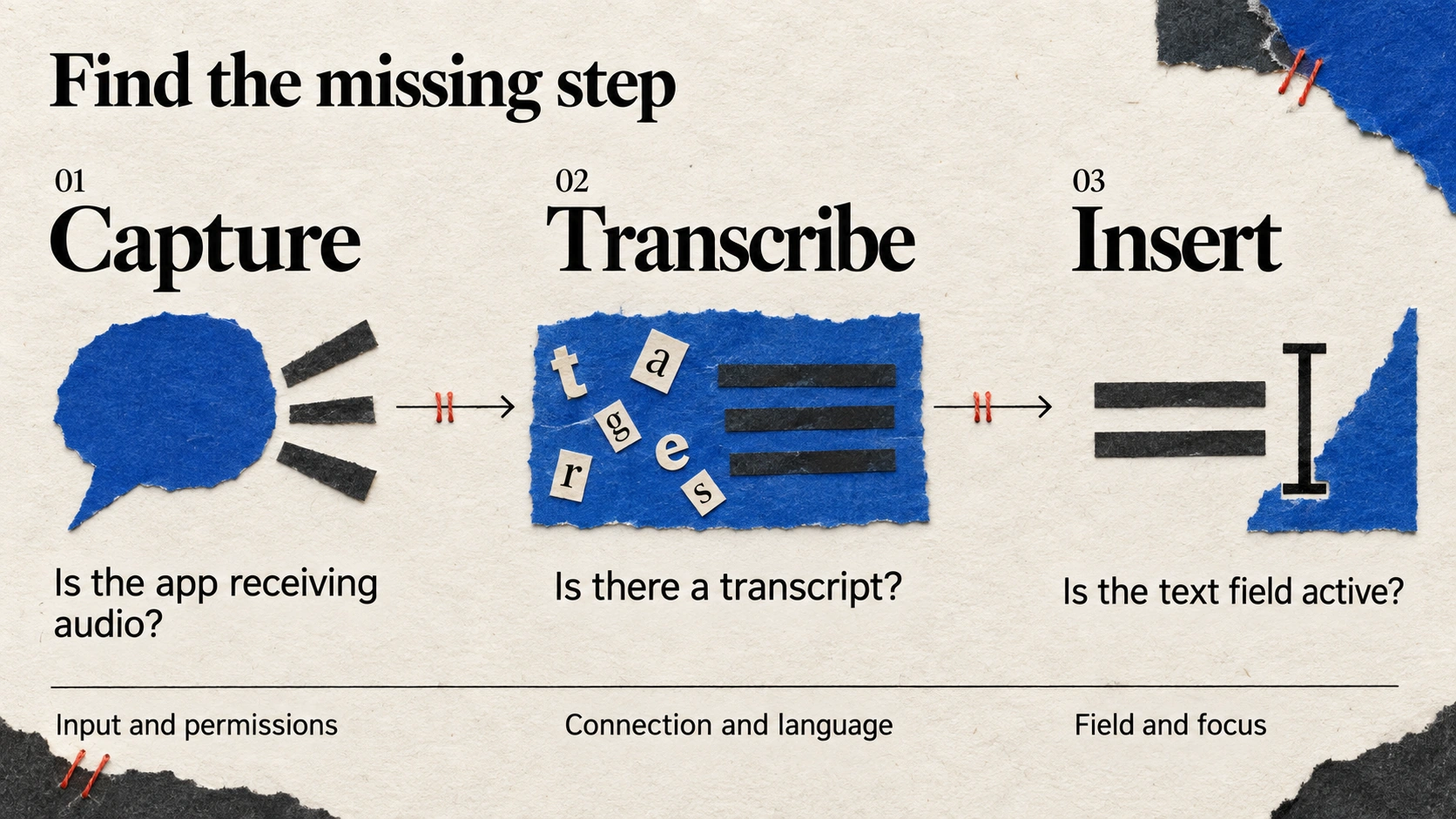
Check audio capture, transcription and insertion separately to identify where dictation stops.
| What you see | What to check first |
|---|---|
| The Windows meter moves, but the dictation app receives nothing | Selected input device and microphone permissions |
| Recording starts, but no transcript appears | Connection, error message and retry options |
| A transcript exists, but your document stays empty | Destination text field and insertion result |
| Text appears in the wrong language | Dictation language, separately from interface language |
| An extremely quiet recording is rejected | Microphone distance and a fresh, clearly spoken test |
For a useful test, say a complete sentence at a normal volume: “The project review is on Friday.” Use a blank document rather than a form containing client information. Change one setting at a time so you can tell what helped.
1. Check which microphone is actually selected
A webcam and a headset can both appear as recording devices. Check Settings → System → Sound → Input, then choose the microphone you intend to use. If the dictation app offers an input selector, check that too. Microsoft recommends checking the selected input and external microphone connection when troubleshooting voice typing. Microsoft: voice typing troubleshooting.
Do not assume that a successful test in one app establishes what another app is recording. Keep the device, speaking distance and test sentence consistent while comparing results. If a recording is rejected, move closer and try normal speech before changing several audio settings at once.
Avoid diagnosing a broken microphone from a failed transcription alone. The failure may occur after audio capture.
2. Check Windows microphone permissions
On Windows 11, open Settings → Privacy & security → Microphone. Check Microphone access, Let apps access your microphone and, for desktop software, Let desktop apps access your microphone. Desktop apps may not have the same individual permission toggles as Microsoft Store apps. Microsoft: microphone permissions.
After changing a permission, stop the current test and start a fresh one. Record what the app reports: permission denied, no usable audio, a connection error or a completed transcript. Those outcomes lead to different next steps.
The instructions above use Windows 11 menu names. On another Windows version, find the corresponding microphone privacy settings rather than expecting an identical screen.
3. Check the connection and a simple text field
Windows voice typing requires an internet connection, a working microphone and a cursor in a text box. To test it, click a blank text field and press Windows + H. Microsoft: using voice typing.
This comparison can help narrow the problem, but it does not certify another dictation app’s configuration. If Windows voice typing succeeds and another app fails, inspect that app’s error and selected input. If both fail, shared settings are a reasonable next place to investigate.
Sayvento also uses cloud transcription, so its local recording and history features do not make transcription available offline. Its privacy page explains the difference between local data and cloud processing.
4. Separate spoken language from interface language
An English interface does not necessarily mean the recording should be transcribed as English. Likewise, switching menus to Greek is a different action from choosing a dictation language.
Sayvento supports Greek and English mixed dictation by default, offers additional dictation languages, and has a separate interface-language setting. Check the current options on the product page.
For troubleshooting, use two clear examples separately:
- English: “Please send the updated proposal tomorrow.”
- Greek: “Θα στείλω την ενημερωμένη πρόταση αύριο.”
Then try a sentence that reflects how you actually work, such as a Greek message containing an English product name. These are suggested test sentences, not measured accuracy results. Review names, numbers and specialist terms before sending the text.
For a complete mixed-language draft, follow the Greek and English email dictation workflow.
5. If the transcript exists, check the paste destination
When text exists in Sayvento’s History, start by recovering that text. Click the intended editable field, copy the transcript from History, and paste it there. A document being visible does not necessarily mean its editing area has keyboard focus.
Sayvento’s 0.1.43 result cards distinguish successful insertion from cases needing attention. An attention card can explain why insertion failed and offer recovery actions. Read that reason before recording again. The changelog documents the current cards and recovery behavior.
There is another detail worth checking: Sayvento restores the previous clipboard content after successful paste when Restore clipboard after paste is enabled, which is the default. A later manual Ctrl + V may therefore insert your earlier clipboard content. To reuse a transcript, copy it again from History.
6. If transcription failed, use Retry while available
Starting with 0.1.42, Sayvento keeps the latest failed recording in memory for up to 10 minutes, so you can retry without repeating the dictation. Retry is available through the Floating bar or tray menu. This is a temporary recovery window, not a saved audio archive.
If you want to retry, keep the app open and stay signed in. The retained recording is discarded on sign-out or quit; it is not written to disk. The changelog and privacy page linked above describe these limits.
A “No usable audio” error is different from a completed transcript that could not be inserted. Read the error first, then decide whether to retry transcription or make a fresh recording with clearer speech.
A small test before your next real message
Suppose you are preparing a Greek client reply that includes an English campaign name. Open a blank draft, confirm the microphone, dictate one sentence, and check both the transcript and where it appears. Then continue with the full reply.
This gives you a repeatable check without putting a long message at risk. It also tells you what to report if something fails: the input device, dictation language, exact error and whether History contains text. Avoid sharing private transcript content when a description of the failure is enough.
To try this workflow, download Sayvento for Windows and create a Free account. The Free plan currently includes 3,500 words per week; check the pricing page for current limits.
Frequently asked questions
Why does the Windows meter move while dictation fails?
The meter confirms activity at the input being displayed. It does not confirm the dictation app’s selected device, successful transcription or insertion into a text field. Check which stage failed before changing settings.
Does Sayvento need an internet connection?
Yes, cloud transcription needs connectivity. Local History storage is separate from the service that turns speech into text.
Can I recover a failed recording after closing Sayvento?
The temporary failed-recording Retry feature does not survive quitting or signing out. Use it within the retention window while the app remains open. An existing transcript in History is a different kind of recovery.
Should I record again if the text did not paste?
Check History first. If the transcript is there, copy it into the intended field and inspect the insertion error. Re-recording is unnecessary when the text you need already exists.