
To dictate a long document on Windows, outline its sections first, speak one passage at a time, and review and save each passage before continuing. Use your editor for headings, precise formatting and corrections. Finish with a separate editing pass across the whole document.
A project report, article or internal guide can be easy to explain aloud and difficult to start on a blank page. Voice typing gives you a way to capture that explanation. A repeatable drafting routine helps you turn it into a document someone else can use.
This guide is about composing your own first draft. It is not a method for transcribing a recorded meeting. The examples below are suggested wording, not measured tests or actual transcription results.
What is a voice-dictated first draft?
A voice-dictated first draft is text you compose by speaking into a speech-to-text tool, then revise in a document editor. You supply the ideas, evidence and decisions. Recognition and optional cleanup help capture the wording; they do not verify the argument.
For a longer piece, treat each recording as one manageable passage. That gives you a clear place to pause, check what arrived and decide what comes next. There is no universal best recording length: choose a unit you can comfortably review.
Choose one dictation tool and a saved document
Use a tool that fits your language and destination. Run one dictation tool at a time so two listeners do not insert duplicate text.
- Word Dictate: Microsoft’s Word dictation guide explains its microphone and internet requirements and availability. Its language list includes Greek as a preview language, where accuracy or punctuation support may be limited. Check the requirements for your Word version.
- Google Docs voice typing: Google’s official help covers supported browsers, languages and editing commands. It says voice commands require English account and document languages, and punctuation may vary by language.
- Sayvento: a Windows app for dictating into text fields that accept paste. It can be useful when your draft moves between an editor and other work apps, or includes Greek and English together. Destination support varies; try a short passage before committing a substantial draft.
Start with a named document in your chosen editor and confirm how it saves. A dictation history entry and a saved, organized document serve different purposes.
Build the skeleton before you speak
Write the working title and a short set of section headings. Under each, add one question the section must answer. For a project update, that might be:
| Section | Question to answer | Material to have nearby |
|---|---|---|
| Current position | What has changed? | Confirmed status notes |
| Work completed | What is actually finished? | Deliverables and evidence |
| Open issues | What still needs a decision? | Dependencies and uncertainties |
| Next steps | Who does what next? | Agreed owners and dates |
These headings are an editorial scaffold, not spoken commands. Type them or apply them with your editor’s controls. In Word for Windows, headings with heading styles can appear in the Navigation pane, making a long draft easier to navigate and reorganize. See Microsoft’s Navigation pane guide.
Keep facts you must reproduce exactly beside the outline. A document reference, a technical identifier or an agreed date deserves a deliberate check, even when the sentence sounds right.
Repeat a speak, check and save cycle
1. Put the cursor under one heading
Click in an editable paragraph beneath the section you want to draft. Read its guiding question before recording. If you are using Sayvento, check your configured dictation shortcut rather than assuming a shortcut from another app will work.
2. Explain one complete point
Speak as if you were explaining the section to a colleague: state the point, give the supporting detail, then say why it matters. Stop once that passage is complete. You can start another recording for a second point.
For example:
The onboarding guide is ready for internal review. The installation and sign-in sections are complete. We still need confirmation of the support contact before sharing the guide with customers.
This is draft wording. Replace it with your actual status; a clean sentence should never make an unfinished task sound complete.
3. Inspect the text before moving on
Check that it landed in the intended paragraph. Read for missing negatives, names, dates and repeated sentences. Correct a misunderstanding now while you still remember what you meant.
If a sentence needs rewriting, stop recording and edit it. Do not assume saying “delete that” or “new paragraph” has the same effect across Word, Google Docs and Sayvento. Use the keyboard or the editor’s controls whenever you need predictable paragraph breaks or exact formatting.
4. Save the passage, then continue
Confirm the document has saved, move to the next section and repeat. If you need to consult another window, finish the current cycle first and check the insertion point again when you return.
With Sayvento, the public workflow describes pasting into the app active when the result is ready. Stay in the intended destination until you have checked the result. See how Sayvento works for the paste and recovery workflow.
Keep Greek and English terms intentional
A Greek draft may naturally include English product names or work terms. Sayvento’s Greek + English mode supports that mixed-language workflow. Keep the distinction between what you said and the language you want the final document to use.
For example, a suggested passage might be:
Το onboarding guide είναι έτοιμο για internal review. Χρειαζόμαστε ακόμη επιβεβαίωση για το support contact πριν το μοιραστούμε με τους πελάτες.
During editing, decide whether the audience expects those English terms or clearer Greek alternatives. Check accents, names and exact terminology against your source material. Translation and rewriting are separate editorial decisions; do not let them silently change a commitment.
Use History as a recovery aid
If a Sayvento passage does not appear where expected, check the document before trying again. Open History, find the relevant transcript and copy it into the intended paragraph. Compare the surrounding text so you do not duplicate a passage that was already inserted.
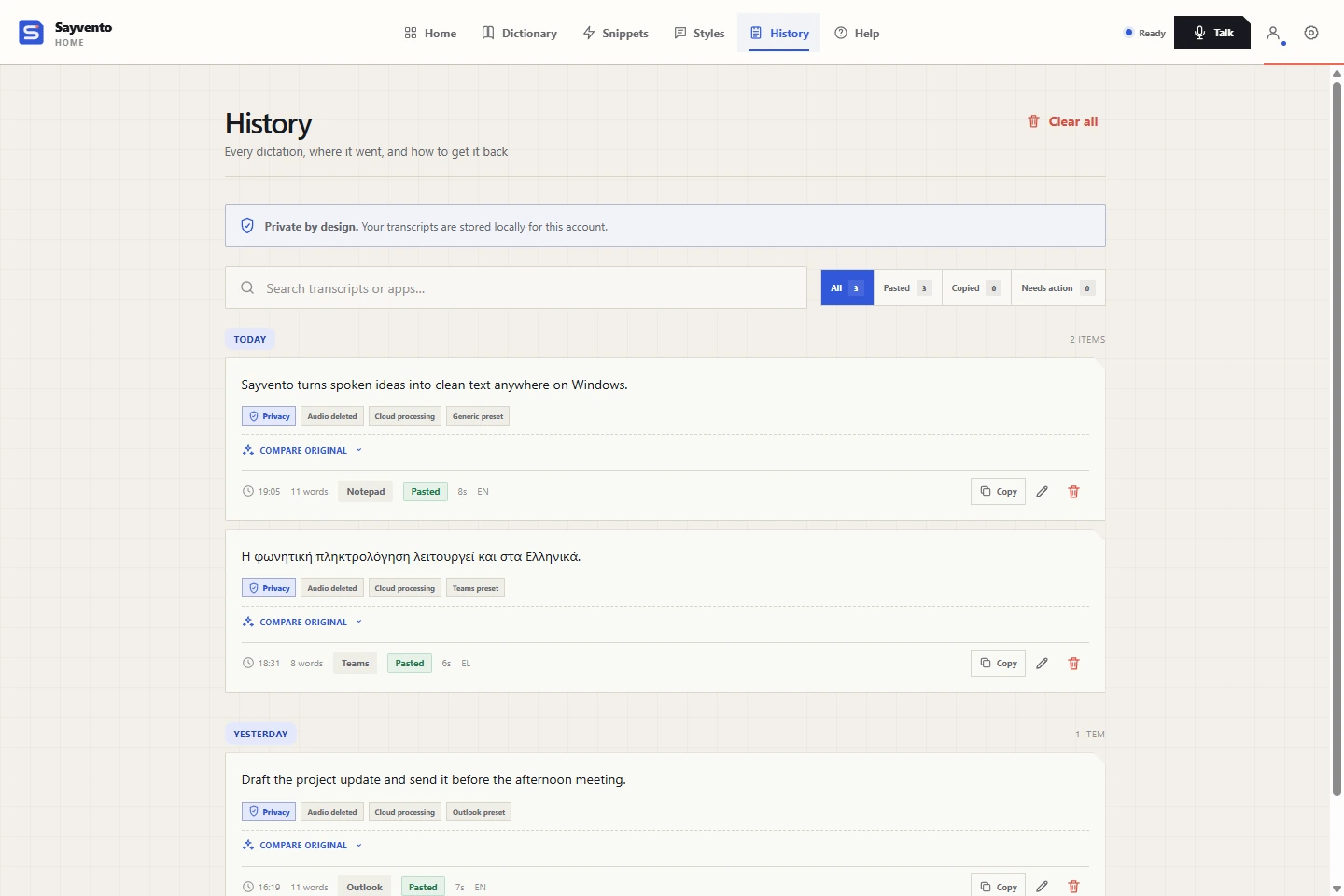
Actual screenshot from Sayvento’s public Product page, with demo data. Open the image for a larger view; appearance may differ by app version.
History is a recovery aid, not your document’s section structure or version history. Keep the assembled draft in your editor. The Product page describes local History and its export options.
Edit the document as a whole
Once all sections contain text, stop dictating and read from the beginning. Look for repeated explanations, missing transitions and conclusions that no longer match the evidence.
Use two passes:
- Meaning: Does each section answer its question? Are facts supported, uncertainties explicit and responsibilities clear?
- Presentation: Are headings consistent, paragraphs readable and terms used consistently? Fix punctuation, spelling and formatting after the structure makes sense.
Optional cleanup can help with wording, but inspect any changes to dates, quantities or obligations. Only dictate work material you are permitted to send for cloud processing. Sayvento needs internet access for transcription; its privacy page distinguishes local History from cloud processing.
Try the routine on one section of your next report. Get Sayvento through Microsoft Store and create a Free account. As checked on 26 October 2026, Free includes 3,500 words per week, resetting Monday at 00:00 UTC. The pricing page lists Pro at €10/month or €100/year and directs you to your account for upgrade availability.
Frequently asked questions
Can I dictate an entire report in one recording?
This workflow does not depend on one continuous recording or an assumed recording limit. Draft one manageable passage, review it and save it, then continue. Check your chosen tool for its current limits.
Can I use Sayvento to draft in Word?
Try it in an ordinary editable Word paragraph that accepts paste. Confirm the result with a short passage first. Protected documents, elevated windows and individual destination behavior can affect insertion.
Will spoken formatting commands work in every tool?
No. Supported commands depend on the tool, language and version. Use your editor’s controls for reliable heading styles, paragraph breaks, tables and exact layout.
Is dictation History enough to preserve a long draft?
Keep your assembled draft in a saved document. History can help recover individual passages, but it does not replace the document’s organization, saving or backups.